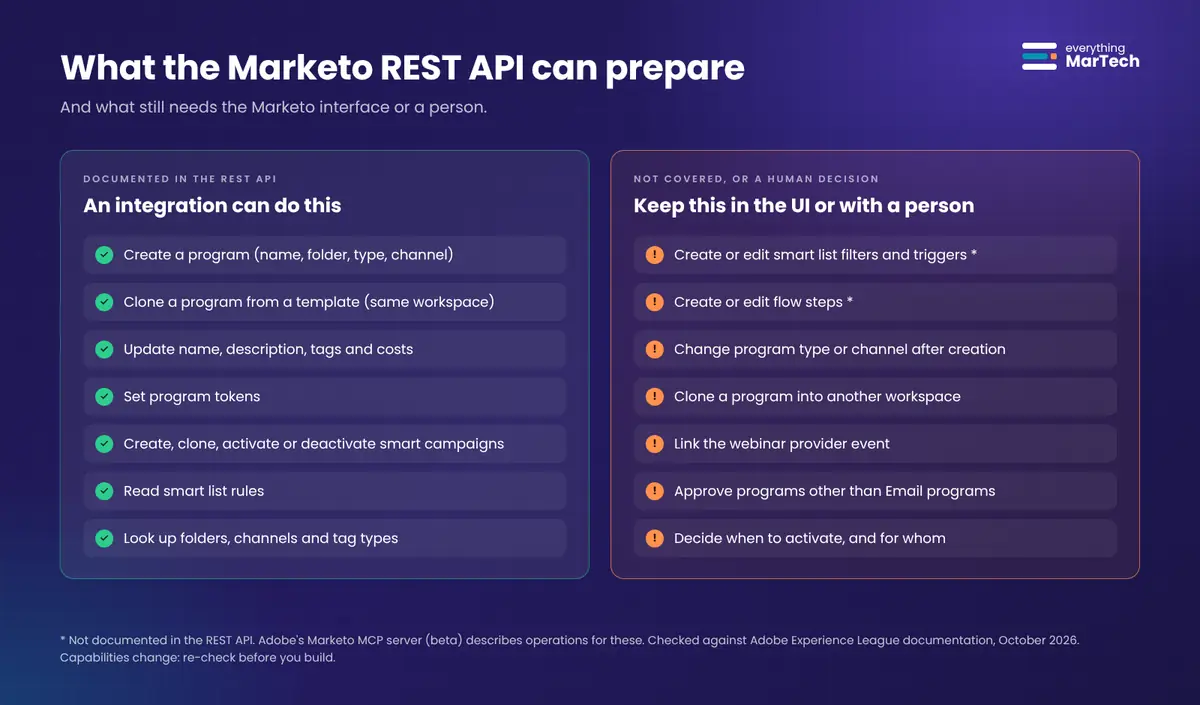
The table below summarizes what Adobe’s developer documentation says about the operations this workflow needs. Endpoints are relative to your instance’s REST endpoint (found under Admin > Integration > Web Services).
| Task | Supported by the REST API? | Documented endpoint and notes |
|---|---|---|
| Create a program | Yes | POST /rest/asset/v1/programs.json. Requires name, folder, type and channel; description, costs and tags are optional. Some subscriptions require tags for specific program types (Adobe, Programs API) |
| Clone a program | Yes, with limits | POST /rest/asset/v1/program/{id}/clone.json. Needs a new name (globally unique, up to 255 characters) and a parent folder in the same workspace as the source. Programs containing push notifications, in-app messages, reports or social assets cannot be cloned (Adobe, Programs API) |
| Change name, description, tags, costs | Yes | POST /rest/asset/v1/program/{id}.json. Type and channel can only be set at creation (Adobe, Programs API) |
| Look up a program, folder, channel or tag type | Yes | program/byName.json, folder/byName.json, channels.json, tagTypes.json (Adobe, Endpoint reference) |
| Set program tokens | Yes | POST /rest/asset/v1/folder/{id}/tokens.json with folderType=Program. Types: date, number, rich text, score, SFDC campaign, text. Token names up to 50 characters (Adobe, Tokens API) |
| Create, clone, activate or deactivate a smart campaign | Yes | Smart Campaigns API. Activation requires at least one trigger and one flow step, all error-free (Adobe, Smart Campaigns API) |
| Read smart list rules | Yes | Smart Lists API with includeRules=true (Adobe, Smart Lists API) |
| Create or edit smart list filters and triggers | Not documented in the REST API | The Smart Lists API documents query, clone and delete only (Adobe, Smart Lists API) |
| Create or edit flow steps | Not documented in the REST API | Community members have asked Adobe for these endpoints (Adobe Community, 2026) |
| Approve a program | Email programs only | approve.json and unapprove.json on Email programs, after dates, an approved email and a smart list are set up in the UI (Adobe, Programs API) |
| Link a webinar provider event | Not covered by the documented Programs API | Plan this as a manual step in the program’s event settings |
| Clone a program into another workspace | No | The target folder must be in the same workspace as the source program (Adobe, Programs API) |
The limits that shape the design
These platform limits are small details that become big design constraints once an assistant starts making calls on behalf of many marketers (Adobe, REST API):
- Rate limit: 100 API calls per 20 seconds per instance.
- Concurrency: a maximum of 10 concurrent API calls.
- Daily quota: 50,000 calls per day by default, shared with every other integration on the instance (CRM connectors, data tools, enrichment).
- Authentication: access tokens last one hour and must be sent in an
Authorization: Bearerheader. Adobe removed support for theaccess_tokenquery parameter, with a stated date of 30 June 2025, so older code that passes the token in the URL needs updating. - Errors: most API errors return HTTP 200 with
"success": falseand an error code, so an integration must read the body, not just the HTTP status.
What about Adobe’s Marketo MCP server?
In 2026 Adobe documented a hosted Marketo Engage Model Context Protocol (MCP) server that connects AI assistants to Marketo, listed with a beta badge on Experience League. Adobe describes it as offering “more than 100 operations”, including program creation and cloning, smart campaign creation with smart list filters and flow steps, and activation, and lists Copilot Studio among the supported clients (Adobe, Marketo MCP server). According to the same page, it uses API credentials from a LaunchPoint custom service, inherits your instance’s API rate limits, and respects the API user’s permissions.
That changes what is possible. It does not change what is wise. An MCP server gives an AI model a large, general toolset, including actions you may never want it to take unattended. Community discussion also notes that the beta is still changing (Adobe Community, 2026). The design in this article therefore keeps a narrow, custom integration layer between the assistant and Marketo, and treats the MCP server as an alternative you can evaluate with the same guardrails (see Alternatives).
Version note: API capabilities change. Everything above was checked against Adobe’s documentation on 18 October 2026. Re-check the Programs, Smart Campaigns and MCP pages before you build.
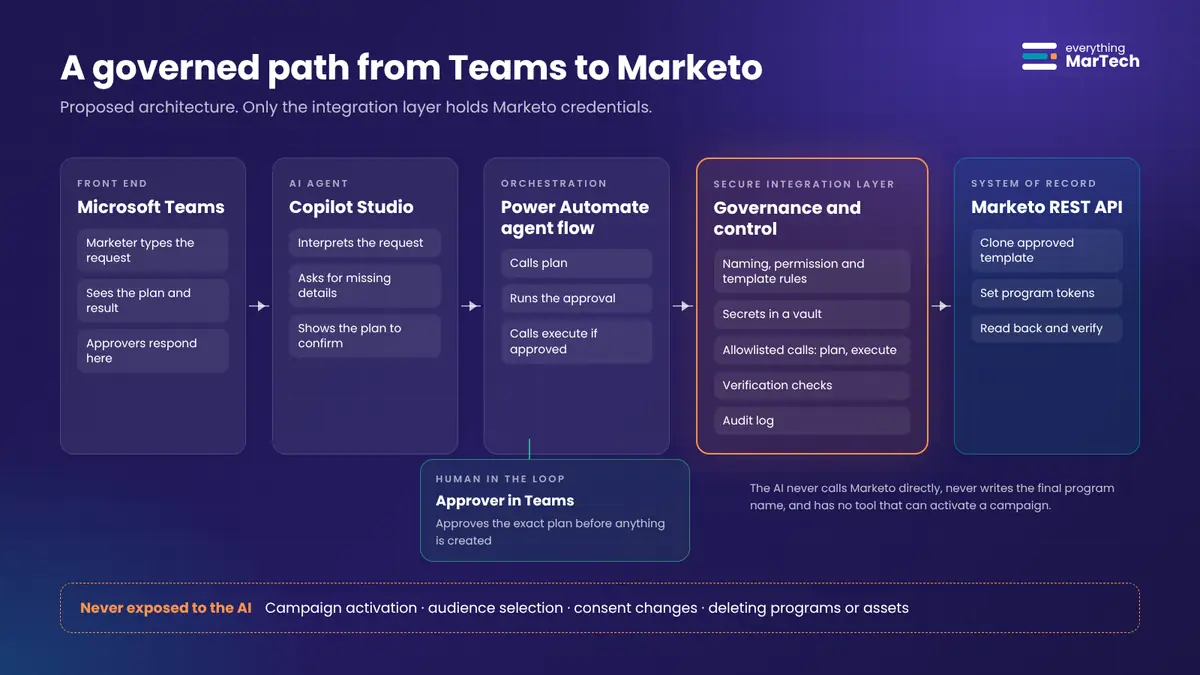
The architecture follows the path from the original idea:
Microsoft Teams → Copilot Studio → Power Automate → Secure Integration Layer → Marketo REST API
Each component has a narrow responsibility.
| Layer | Responsibility | What it must not do |
|---|---|---|
| Microsoft Teams | Where the marketer types the request and receives the summary, the approval request and the result | Hold any Marketo logic |
| Copilot Studio agent | Understands the request, asks for missing details, extracts structured fields, shows the plan back for confirmation | Decide whether a request is valid, generate the final name, or call Marketo directly |
| Power Automate (agent flow) | Deterministic orchestration: calls the integration layer’s “plan” endpoint, runs the approval, then calls “execute” | Contain business rules that should live in one place |
| Secure integration layer | Governance rules, Marketo credentials, allowlisted API calls, verification, audit log | Expose generic “call any Marketo endpoint” functionality |
| Marketo Engage | System of record for programs, enforced by the API user’s role and workspace permissions | Be the only line of defense |
Why put an integration layer in the middle?
It is tempting to let Power Automate call Marketo directly, or to hand the AI agent a Marketo connector. A separate integration layer (for example an Azure Function or a small container service behind Azure API Management) earns its place for five reasons:
- One place for business rules. Naming conventions, template mappings and workspace permissions live in version-controlled code that marketing operations owns and reviews.
- Secrets stay out of flows and prompts. The Marketo client secret sits in a vault such as Azure Key Vault and never passes through the conversation.
- A small, allowlisted surface. The layer exposes two operations,
planandexecute. There is no “activate”, no “delete”, no “update lead”. OWASP lists this kind of control, minimizing an agent’s functions and permissions, as a core mitigation for the risk it calls Excessive Agency (OWASP, LLM06:2025). - Rate limits and retries are handled once. Shared quotas are managed centrally instead of in every flow.
- Complete audit. Every plan, approval reference, API call and verification result is logged with a correlation ID.
Design principle: AI can interpret the request, but business rules should determine whether it is valid. Authorization should be enforced in the downstream systems, not by trusting the model to behave (OWASP, LLM06:2025).
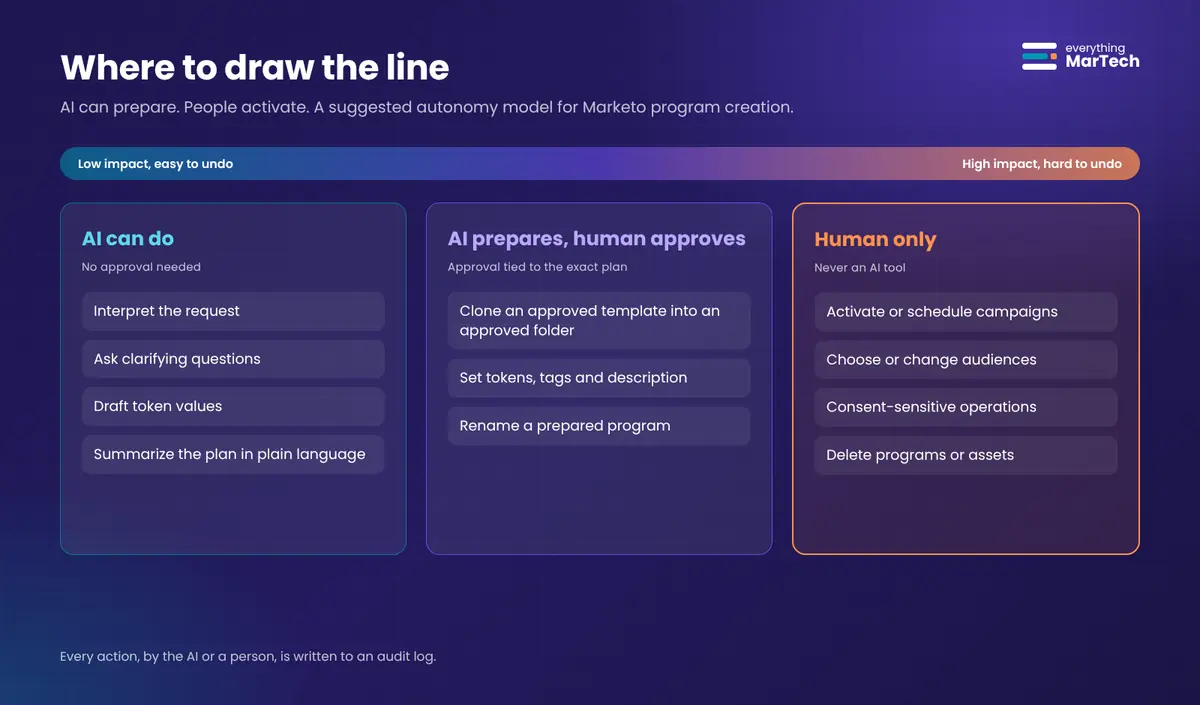
The question is not “AI or human”. It is which decisions belong to which party. A practical way to decide is to ask two questions about every action: how easy is it to undo, and who could it affect?
| Action | Reversible? | Who it can affect | Recommended control |
|---|---|---|---|
| Interpret the request, ask for missing details | Fully | Nobody | AI, no approval needed |
| Generate a plan and preview the program name | Fully | Nobody | AI plus deterministic rules |
| Clone a template into an approved folder, campaigns inactive | Yes, the program can be removed | Internal team only | Requester confirms; optional approver for some workspaces |
| Set program tokens, tags, description | Yes | Internal team only | Allowed after the plan is approved |
| Approve emails and landing pages | Yes, but content can then be sent | Customers, if used | Human review in Marketo |
| Activate trigger campaigns or schedule batch campaigns | Not once people have been processed | Customers and prospects | Human only, with recorded approval |
| Choose or change the audience (smart list filters) | Not once sent | Customers and prospects | Human only |
| Anything touching consent, subscriptions or legal basis | Often not | Customers and prospects; regulatory exposure | Human only, with privacy or legal review where required |
| Delete programs or assets | Restoring is manual at best | Reporting history | Human only |
My own line is simple: AI can prepare, people activate. Campaign activation, audience eligibility, consent-sensitive operations and high-impact changes stay subject to explicit authorization and appropriate review. Every action, by the AI or by a person, is traceable in an audit log.
This is also the line the workflow enforces technically. The integration layer has no activation operation at all, so no prompt, however clever, can make the assistant switch a campaign on.
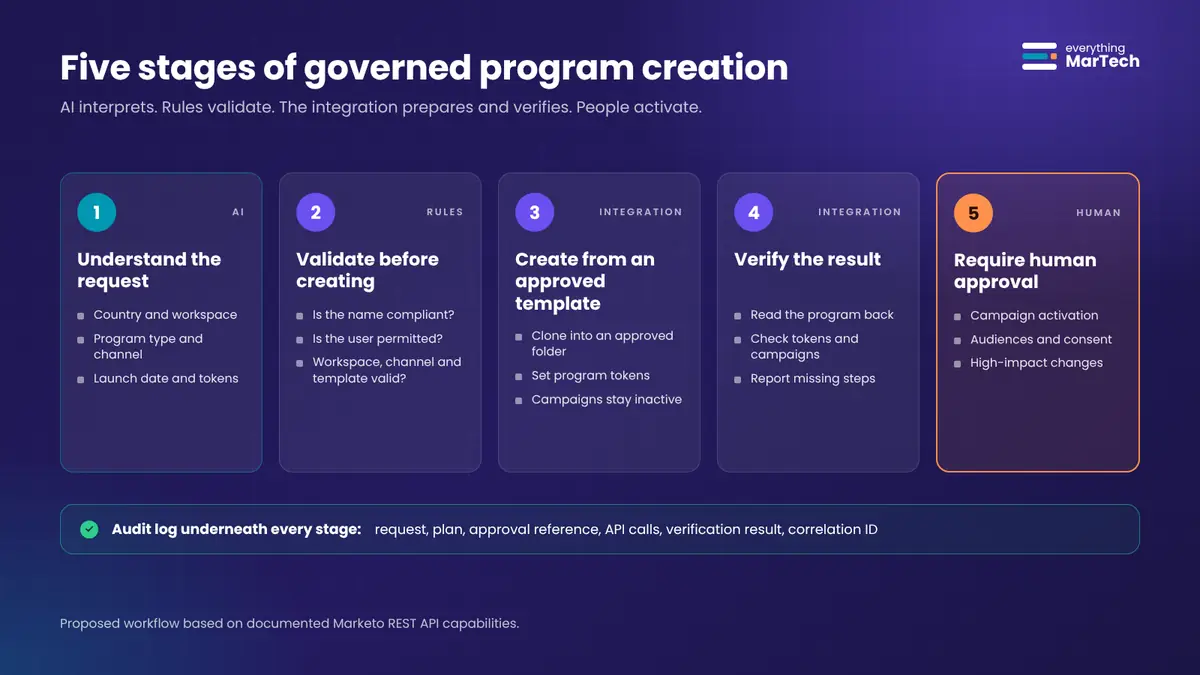
The nine steps below turn the five stages into an implementation. Steps 1 to 4 are about Marketo and the integration layer, Steps 5 to 7 are about the Microsoft side, and Steps 8 and 9 are about verification, audit and rollout.
About navigation labels: Marketo menu paths below are taken from Adobe’s documentation where cited. Microsoft is actively changing the Copilot Studio interface (in 2026 it introduced a new agent experience and “workflows” alongside agent flows), so Microsoft steps are described by function, with labels only where Microsoft’s current documentation confirms them. Always test in a sandbox or development environment first.
Step 1: Prepare Marketo for governed automation
Objective: Give the automation a safe, predictable place to work: approved templates, a target folder structure, a naming convention, and an API user with the minimum permissions it needs.
Prerequisites: Marketo admin access; agreement from marketing operations on templates and naming; ideally a Marketo sandbox instance for development.
Navigation: Marketing Activities (templates and folders); Admin > Users & Roles (role and API-only user); Admin > Integration > LaunchPoint (custom service); Admin > Integration > Web Services (REST endpoint and identity URL) (Adobe, Authentication).
Detailed instructions:
- Create or confirm your template programs. For each program type you want the assistant to support (start with one, such as webinars), make sure a reviewed template exists in each workspace that will use it. Remember that the clone API cannot copy across workspaces, so an EMEA template is needed for EMEA programs.
- Name templates so they are easy to recognize, for example
TPL_Webinar_v3, and keep them in a dedicated templates folder that only marketing operations can edit. - Make the template “clone-ready”. Remove anything the clone API cannot handle (push notifications, in-app messages, reports, social assets). Leave all smart campaigns inactive. Use tokens such as
{{my.WebinarTitle}},{{my.EventDate}}and{{my.Language}}in emails and landing pages, so a new program only needs token values. - Create target folders where prepared programs will land, for example
EMEA > Germany > 2026 > Webinars. Note the folder IDs (the ID appears in the URL when you select the folder, and can also be retrieved withGET /rest/asset/v1/folder/byName.json). - Write down the naming convention as a pattern code can check. This article uses
YYYY-MM_CC_TYPE_Short-Name, for example2026-11_DE_WBN_AI-in-Manufacturing. - Create a role for the integration. In Admin > Users & Roles, create a role that grants only the asset read and write permissions the workflow needs from the Access API permission group. Do not grant lead, list or campaign execution permissions the workflow does not use. Permission names can vary slightly between instances, so review the Access API list carefully.
- Create an API-only user with that role, assigned only in the workspaces the assistant will serve. Adobe’s REST API guide describes creating a user with the API Only option and assigning a role (Adobe, REST API).
- Create a LaunchPoint custom service for the API-only user. Copy the Client ID and Client Secret straight into your secrets vault.
Example configuration (illustrative):
| Setting | Example value |
|---|---|
| Template program | TPL_Webinar_v3 (ID 1001), EMEA workspace |
| Target folder | EMEA > Germany > 2026 > Webinars (ID 2050) |
| Channel | Webinar |
| Required tokens | my.WebinarTitle, my.EventDate, my.Language |
| Required smart campaigns | 01 Registration, 02 Confirmation, 03 Reminder |
| API role | Asset read and write only, EMEA workspace only |
Expected result: a template you trust, a folder to clone into, and credentials stored in a vault.
How to verify: request an access token from the identity endpoint and call GET /rest/asset/v1/program/byName.json?name=TPL_Webinar_v3. You should receive the template’s details. Then try reading a program in a workspace the role does not cover: it should not be returned.
Common mistakes: reusing an admin user’s credentials for the integration; giving the API role every permission “to be safe”; keeping templates in a folder anyone can edit.
Troubleshooting: a 603 error means the role lacks permission for that API. Empty results for assets you know exist usually mean the API user is not assigned to that workspace.
Visual requirement: a screenshot from your own instance of the templates folder and the role’s Access API permissions (do not use mock screenshots).
Step 2: Define the request schema the AI must produce
Objective: Turn a free-text request into a fixed, validated structure. This is the contract between the AI and everything after it.
Prerequisites: the template registry from Step 1.
Navigation: your integration layer’s code repository.
Detailed instructions:
- List the fields a program request needs. Keep the list short; every extra field is another thing the AI can get wrong.
- Separate fields the AI extracts (country, program type, short name, launch date, token values) from fields the platform supplies (the requester’s identity, taken from their signed-in account, never from the chat text).
- Exclude anything the rules should derive: the final program name, folder ID, workspace and template ID are calculated by code from the registry.
- Write the schema down, for example as JSON Schema, and use it both in the agent’s instructions and in the integration layer’s input validation.
Example configuration:
{
  "$schema": "https://json-schema.org/draft/2020-12/schema",
  "title": "MarketoProgramRequest",
  "type": "object",
  "required": ["country", "program_type", "short_name", "launch_date", "tokens"],
  "additionalProperties": false,
  "properties": {
    "country":      { "type": "string", "pattern": "^[A-Z]{2}$", "description": "ISO 3166-1 alpha-2 code, e.g. DE" },
    "program_type": { "type": "string", "enum": ["webinar"] },
    "short_name":   { "type": "string", "minLength": 3, "maxLength": 60 },
    "launch_date":  { "type": "string", "format": "date" },
    "tokens": {
      "type": "object",
      "additionalProperties": false,
      "properties": {
        "my.WebinarTitle": { "type": "string", "maxLength": 200 },
        "my.EventDate":    { "type": "string", "format": "date" },
        "my.Language":     { "type": "string", "enum": ["de", "en", "fr"] }
      }
    }
  }
}
Expected result: a schema that rejects anything outside the supported scope (for example, a “nurture” request when only webinars are enabled).
How to verify: run the schema against a handful of test requests, including incomplete and out-of-scope ones, and confirm they fail with clear messages.
Common mistakes: letting the AI supply the requester’s identity; adding a free-text “notes” field that later gets copied into Marketo unchecked.
Troubleshooting: if the agent keeps producing values the schema rejects, show it the allowed values (enums) in its instructions, and ask it to confirm uncertain fields with the user instead of guessing.
Visual requirement: a simple diagram of “AI-extracted fields” versus “platform-supplied fields” versus “rule-derived fields”.
Step 3: Encode the governance rules
Objective: Make every validity decision deterministic, testable and owned by marketing operations.
Prerequisites: the naming convention, template registry and workspace permission model.
Navigation: integration layer code (the validate_request function in the appendix).
Detailed instructions:
- Template check: is there an approved template for this country and program type? If not, stop.
- Permission check: is the signed-in requester allowed to create programs in the template’s workspace? In production, read this from identity groups (for example Microsoft Entra ID security groups), not a hard-coded list.
- Date check: is the launch date valid and far enough away to allow review? The example uses a 14-day minimum lead time; use your own.
- Name generation: build the program name from the validated fields, then check it against the naming pattern and the 255-character limit.
- Uniqueness check: call
GET /rest/asset/v1/program/byName.jsonto make sure the name is not already taken. - Channel check: confirm the template’s channel exists (
GET /rest/asset/v1/channels.json) and matches the program type, because channel cannot be changed after creation. - Token check: all required tokens are present, and no unexpected tokens are included.
- Return a plan, not an action: a valid/invalid flag, a list of human-readable issues, the program name and a plan ID (a hash of the exact plan) that the approval will refer to.
Example configuration (excerpt from the reference code):
def validate_request(req: ProgramRequest, today: date | None = None) -> Plan:
    today = today or date.today()
    issues = []

    template = TEMPLATE_REGISTRY.get((req.country.upper(), req.program_type.lower()))
    if not template:
        issues.append(f"No approved template for country '{req.country}' and type '{req.program_type}'.")
        return Plan(valid=False, issues=issues)

    allowed = WORKSPACE_PERMISSIONS.get(req.requester.lower(), set())
    if template["workspace"] not in allowed:
        issues.append(f"{req.requester} is not permitted to create programs in workspace '{template['workspace']}'.")

    launch = date.fromisoformat(req.launch_date)
    if (launch - today).days < MIN_LEAD_TIME_DAYS:
        issues.append(f"Launch date {launch} is less than {MIN_LEAD_TIME_DAYS} days away.")

    name = build_program_name(req, template["type_code"])   # the AI never writes the final name
    if not NAME_PATTERN.match(name):
        issues.append(f"Generated name '{name}' does not match the naming convention.")
    ...
Expected result: for the same input, the rules always give the same answer, with reasons a marketer can understand.
How to verify: write unit tests for each rule, including the failure cases. The reference code ships with offline tests that check, among other things, that a requester without workspace access, a launch date inside the lead time, missing tokens and unexpected tokens are all rejected.
Common mistakes: asking the AI whether a name “looks compliant”; spreading rules across flows, prompts and code so nobody knows which one wins.
Troubleshooting: if marketers often fail a rule, the rule may be wrong or badly explained. Review the audit log for the most common rejection reasons each month.
Visual requirement: a decision tree showing the checks in order, with a stop at each failure.
Step 4: Build the integration layer’s create, verify and audit functions
Objective: Create the program from the approved template, set its tokens, prove the result is correct, and record everything.
Prerequisites: Steps 1 to 3; a hosting option (for example Azure Functions or Azure Container Apps) with managed identity access to your secrets vault; Python 3.10+ and the requests library for the reference code.
Navigation: integration layer code and hosting configuration.
Detailed instructions:
- Authenticate correctly. Request a token from
<identity URL>/oauth/tokenwith the client credentials grant, cache it, refresh it before it expires (tokens last 3,600 seconds), and send it asAuthorization: Bearer <token>(Adobe, Authentication). - Handle Marketo’s error model. Read
successanderrorsin every response. Re-authenticate on 601 or 602. Back off and retry on 606 (rate limit), 615 (concurrency), 604 and 608. Fail clearly on everything else (Adobe, Error codes). - Re-validate at execution time. Between approval and execution, a name may have been taken or a permission removed. Run the plan again and compare its plan ID with the one that was approved. If they differ, stop.
- Clone the template with
POST /rest/asset/v1/program/{templateId}/clone.json, sending the generatedname, the targetfolderas{"id": 2050, "type": "Folder"}and adescriptionthat records the requester, approval reference and correlation ID. - Set tokens with
POST /rest/asset/v1/folder/{programId}/tokens.jsonandfolderType=Program, one call per token, using the right token type (for exampledatefor dates). - Verify (see Step 8) and write audit records for the plan, the clone and the verification.
- Return a structured result to the flow: status (
preparedorneeds_attention), program ID and name, each check with pass or fail, and the list of manual steps.
Example configuration (excerpt):
def execute_plan(req, client, approved_plan_id, approval_ref):
    correlation_id = str(uuid.uuid4())
    plan = plan_program(req, client)                 # fresh validation, including name uniqueness
    if not plan.valid:
        return {"status": "rejected", "issues": plan.issues, "correlation_id": correlation_id}
    if plan.plan_id != approved_plan_id:             # the approval covers this exact plan only
        return {"status": "rejected", "issues": ["Request changed after approval. Submit it again."]}

    tpl = plan.template
    created = client.clone_program(tpl["template_program_id"], plan.program_name, tpl["target_folder_id"],
                                   f"Prepared by AI assistant for {req.requester}. Approval ref {approval_ref}.")[0]
    for token_name, value in req.tokens.items():
        client.set_program_token(created["id"], token_name, value, "date" if token_name == "my.EventDate" else "text")

    verification = verify_program(client, created["id"], plan, req)
    audit("program_verified", correlation_id=correlation_id, program_id=created["id"], passed=verification["passed"])
    return {"status": "prepared" if verification["passed"] else "needs_attention", "program_id": created["id"],
            "program_name": plan.program_name, "verification": verification, "correlation_id": correlation_id}
The complete, commented file, including the Marketo client with token caching and retries, is in the appendix.
Expected result: a cloned program in the target folder, tokens set, and a verification report.
How to verify: run the offline tests first. Then, in a sandbox, run a dry run (plan_program) and a real execution against a test template, and compare the program in the Marketo UI with the verification report.
Common mistakes: passing the access token as a query parameter (no longer supported); ignoring "success": false because the HTTP status was 200; not handling the shared daily quota.
Troubleshooting: see the troubleshooting guide for error codes 601, 602, 603, 606, 607, 615, 709, 710 and 711.
Visual requirement: a sequence diagram of plan, approve, execute, verify, audit.
Step 5: Expose the integration layer to Power Automate
Objective: Give the agent two safe tools, “plan a program” and “execute an approved plan”, through a deterministic flow.
Prerequisites: Power Automate or Copilot Studio access in an environment your admins have approved; an authentication method for the integration layer (for example Microsoft Entra ID OAuth through a custom connector, or Azure API Management); confirmation from your Microsoft licensing admin about which connectors your licenses cover (HTTP actions and custom connectors can require premium licensing).
Navigation: Copilot Studio agent flows, or Power Automate cloud flows. Microsoft documents that agent flows using the When an agent calls the flow trigger can be added to agents as tools, and that agent flow runs consume Copilot Studio capacity (Microsoft Learn, Agent flows).
Detailed instructions:
- Create a custom connector or an HTTP action that calls your integration layer’s
planandexecuteendpoints, authenticated with Entra ID. Do not put the Marketo client secret anywhere in the flow. - Create flow 1, “Plan Marketo program”, using the When an agent calls the flow trigger. Inputs: the structured request fields. Add the requester’s identity from the authenticated user context rather than from a text input. Call
plan. Returnvalid,issues,program_nameandplan_idto the agent. - Create flow 2, “Execute approved Marketo program plan”, also triggered by the agent. Inputs: the request fields and
plan_id. This flow runs the approval (Step 7) and, only if approved, callsexecute. - Keep both flows in a solution so they can be versioned and moved between development, test and production environments.
- Apply your organization’s data policies (Power Platform data loss prevention policies) so the custom connector can only be used in approved environments.
Example configuration (illustrative flow outline):
Flow: Execute approved Marketo program plan
Trigger: When an agent calls the flow
  Inputs: country, program_type, short_name, launch_date, tokens (JSON), plan_id
1. Get requester from the signed-in user context
2. Call integration layer: POST /plan  -> confirm plan_id matches and valid = true
3. Start and wait for an approval  (Approvals connector)
     Title: "Prepare Marketo program 2026-11_DE_WBN_AI-in-Manufacturing"
     Assigned to: requester (confirmation) or regional marketing ops lead (approval)
     Details: plan summary, template, folder, tokens, what will NOT be done
4. Condition: outcome = Approve
     Yes -> Call integration layer: POST /execute (plan_id, approval reference)
     No  -> Return "Not approved" with the approver's comments
5. Return status, program name, verification checks and manual steps to the agent
Expected result: the agent can only plan and execute through these two flows. There is no path from the agent to Marketo that bypasses the integration layer.
How to verify: run each flow manually with test inputs. Then confirm in the integration layer’s logs that requests from the flow carry the expected identity and that an invalid plan returns issues without calling Marketo.
Common mistakes: giving the agent the integration layer’s URL and key directly; storing secrets in flow variables; one flow that both plans and executes without an approval in between.
Troubleshooting: if a flow fails with an authorization error, check the custom connector’s authentication settings and the app registration’s permissions. If runs are blocked, check Copilot Studio capacity in the Power Platform admin center, since Microsoft notes new agent flow runs are blocked when prepaid capacity is consumed (Microsoft Learn, Agent flows).
Visual requirement: a screenshot of the finished flow from your own environment.
Step 6: Design the Copilot Studio agent and conversation
Objective: An agent that understands requests, asks for what is missing, shows the plan back in plain language, and never pretends to have done something it has not.
Prerequisites: a Copilot Studio agent in the same environment as the flows; the flows from Step 5 added as tools; the agent published to Microsoft Teams, which Microsoft lists as an available channel (Microsoft Learn, Channels).
Navigation: your agent’s instructions, tools and channel settings in Copilot Studio.
Detailed instructions:
- Write focused instructions. Tell the agent its single job, the fields it must collect, the allowed values, and the rules of behavior (see the example below).
- Add only the two tools. Name and describe them precisely so the agent knows when to use each. Do not add general-purpose Marketo tools to this agent.
- Require a confirmation turn. After calling “Plan Marketo program”, the agent shows the plan: program name, template, folder, tokens, what will happen and what will not. Only after the user confirms does it call the execute flow.
- Return results honestly. If verification returns
needs_attention, the agent says so and lists the failed checks. It never describes a program as “ready to launch”. - Publish to Teams for a small pilot group first.
Example configuration (agent instructions, illustrative):
You help marketers prepare Adobe Marketo Engage programs from approved templates.
Scope: webinar programs only, for countries with an approved template.

1. Collect: country, program type, a short program name, launch date, webinar title, event date, language.
2. If anything is missing or ambiguous, ask. Never guess dates, countries or languages.
3. Call "Plan Marketo program". If the plan is invalid, explain each issue in plain language.
4. If the plan is valid, show the program name, template, destination and token values,
   and state clearly: "I will not activate, schedule or approve anything."
   Ask the user to confirm.
5. Only after explicit confirmation, call "Execute approved Marketo program plan".
6. Report the verification result exactly. List any failed checks and the manual steps.
You cannot activate campaigns, change audiences, edit consent settings or delete programs.
If asked, explain that these steps require a person in Marketo.
Expected result: a short, predictable conversation that ends with either a verified program or a clear explanation.
How to verify: test in the agent’s test chat with normal, incomplete, out-of-scope and adversarial requests, such as “and activate it straight away”, “use the US template for Germany”, or a request pasted from an email that contains extra instructions. The agent should refuse or ask, and the integration layer should reject anything invalid regardless of what the agent does.
Common mistakes: relying on the instructions alone for safety; giving the agent tools it does not need; letting it describe the program as “live” or “ready” after creation.
Troubleshooting: if the agent calls the wrong tool, improve the tool names and descriptions first, then the instructions. Copilot Studio’s activity trace shows which tool ran, with what inputs and output.
Visual requirement: an illustrative conversation mockup, clearly labeled as a mockup (see the illustrative scenario).
Step 7: Add human approval at the right points
Objective: Make the human decisions explicit, recorded and tied to the exact plan.
Prerequisites: the Approvals connector in Power Automate; a list of approvers per workspace or region.
Navigation: your execute flow (Step 5). The Approvals connector provides actions including Start and wait for an approval, Create an approval and Wait for an approval, with notifications by email and in Teams (Microsoft Learn, Approvals connector). For multi-stage or conditional approval paths, Microsoft announced “advanced approvals” in agent flows as a public preview (Microsoft, Advanced approvals).
Detailed instructions:
- Approval 1, preparation (lightweight): the requester, or a regional marketing operations lead for sensitive workspaces, approves the plan before the program is created. Include the plan ID in the approval so the approval cannot be reused for a different plan.
- Approval 2, activation (outside the assistant): activation is a separate, human process in Marketo, after content review, audience review and any privacy checks. The assistant is not involved, and the integration layer has no activation operation.
- Record the approval reference (the approval’s ID and the approver) in the program description and the audit log.
- Set a timeout for unanswered approvals so stale plans are not executed weeks later, and require re-validation at execution time anyway.
Example configuration (approval request text, illustrative):
Title: Prepare Marketo program 2026-11_DE_WBN_AI-in-Manufacturing
Requested by: anna.mueller@example.com
Template: TPL_Webinar_v3 (EMEA)   Destination: EMEA > Germany > 2026 > Webinars
Tokens: WebinarTitle = "AI in Manufacturing", EventDate = 2026-11-19, Language = de
This will: clone the template, set three tokens, verify the result.
This will NOT: approve assets, activate or schedule campaigns, or select an audience.
Plan ID: ba17d67545a9cd03
Expected result: no program is created without a recorded “Approve”, and no campaign is activated by the assistant at all.
How to verify: reject a test approval and confirm nothing is created. Approve one, change a field, and confirm the execute step rejects the changed plan.
Common mistakes: one approval that covers “everything” including activation; approvals with no plan details, which approvers rubber-stamp.
Troubleshooting: if approvers do not see requests, check that they have access to approvals in their tenant and that notifications are enabled. Guest users cannot act on approvals from Outlook and need the Power Automate portal (Microsoft Learn, Approvals connector).
Visual requirement: an example approval card from your own tenant.
Step 8: Verify the result and report the gaps
Objective: Prove that what was created matches the plan, and tell the marketer exactly what still needs doing.
Prerequisites: the template’s required tokens and smart campaigns, defined in the registry.
Navigation: the integration layer’s verify_program function.
Detailed instructions:
- Read the program back with
GET /rest/asset/v1/program/{id}.json. Check name, folder, workspace and channel. - Read the tokens with
GET /rest/asset/v1/folder/{id}/tokens.json?folderType=Programand compare every required value. - List the smart campaigns in the program with the Smart Campaigns browse endpoint, filtered to the program. Check that every required campaign exists and that none is active.
- List the manual steps that the API does not cover for this program type: linking the webinar provider event, reviewing smart list filters and flow steps, approving emails and landing pages, and the separate activation approval.
- Return
preparedonly when every check passes. Otherwise returnneeds_attentionwith the failing checks, and say so in Teams.
Example configuration: in the reference code, verification returns a list such as:
{
  "passed": false,
  "checks": [
    { "check": "Name matches plan", "ok": true },
    { "check": "Created in approved folder", "ok": true },
    { "check": "Token my.EventDate set", "ok": true },
    { "check": "Smart campaign '03 Reminder' present", "ok": true },
    { "check": "No smart campaign is active", "ok": false }
  ],
  "active_campaigns": ["01 Registration"]
}
Illustrative output from the mocked test, not from a live instance.
Expected result: every program the assistant prepares comes with a pass/fail report.
How to verify: deliberately break a test template (for example, leave a campaign active) and confirm verification fails and the Teams message says so.
Common mistakes: treating the clone response as proof; checking only that the program exists.
Troubleshooting: if token checks fail, confirm the template defines those tokens and that token names are sent without the my. prefix. If the campaign list is empty, check the API user’s permissions in that workspace.
Visual requirement: the verification checklist as a reference graphic.
Step 9: Audit, roll back and roll out
Objective: Make every action traceable, know how to undo a mistake, and introduce the assistant gradually.
Prerequisites: an append-only log store; owners for review; a pilot group.
Navigation: your log store; Marketo Audit Trail, which records create, edit and delete actions for programs, smart campaigns, lists and Design Studio assets, with six months of history (the last 30 days in the app, the rest by export) (Adobe, Audit Trail).
Detailed instructions:
- Log every event with a correlation ID: the request (with personal data kept to the requester’s identity), the plan and its issues, the approval reference and approver, each Marketo call and its result, and the verification report.
- Review the log regularly alongside Marketo’s Audit Trail. Look for rejected plans, failed verifications and unusual volumes.
- Define rollback. Because campaigns are never activated by the assistant, a mistaken program has not touched anyone yet. The safest rollback is for a Marketo user to review and delete or archive it in the UI. If you automate deletion, restrict it to programs the assistant created, that have no members, and only within a short window. The Programs API documents a delete endpoint, but deletion is destructive, so keep it out of the assistant’s tools.
- Roll out in stages: sandbox, then a pilot of a few marketers in one workspace with one template, then more templates and workspaces once the audit log shows clean results.
Example configuration (audit record, illustrative):
{"ts": "2026-10-18T09:14:03Z", "event": "program_cloned", "correlation_id": "6f1c...", "requester": "anna.mueller@example.com",
 "program_id": 5000, "program_name": "2026-11_DE_WBN_AI-in-Manufacturing", "approval_ref": "APPROVAL-42", "template_program_id": 1001}
Expected result: you can answer “who asked for this program, who approved it, what was created and did it pass verification” for any program, in minutes.
How to verify: pick a random program from the pilot and reconstruct its history from the logs and Audit Trail.
Common mistakes: logging full chat transcripts with unnecessary personal data; no owner for the logs; skipping the sandbox.
Troubleshooting: if a program exists in Marketo with no matching audit record, someone created it outside the assistant or logging failed. Treat it as an incident and investigate.
Visual requirement: a rollout roadmap: sandbox, pilot, expand.
Want the next lab in your inbox? The Enterprise MarTech Lab publishes practical architecture and governance guides like this one. Subscribe to the newsletter.
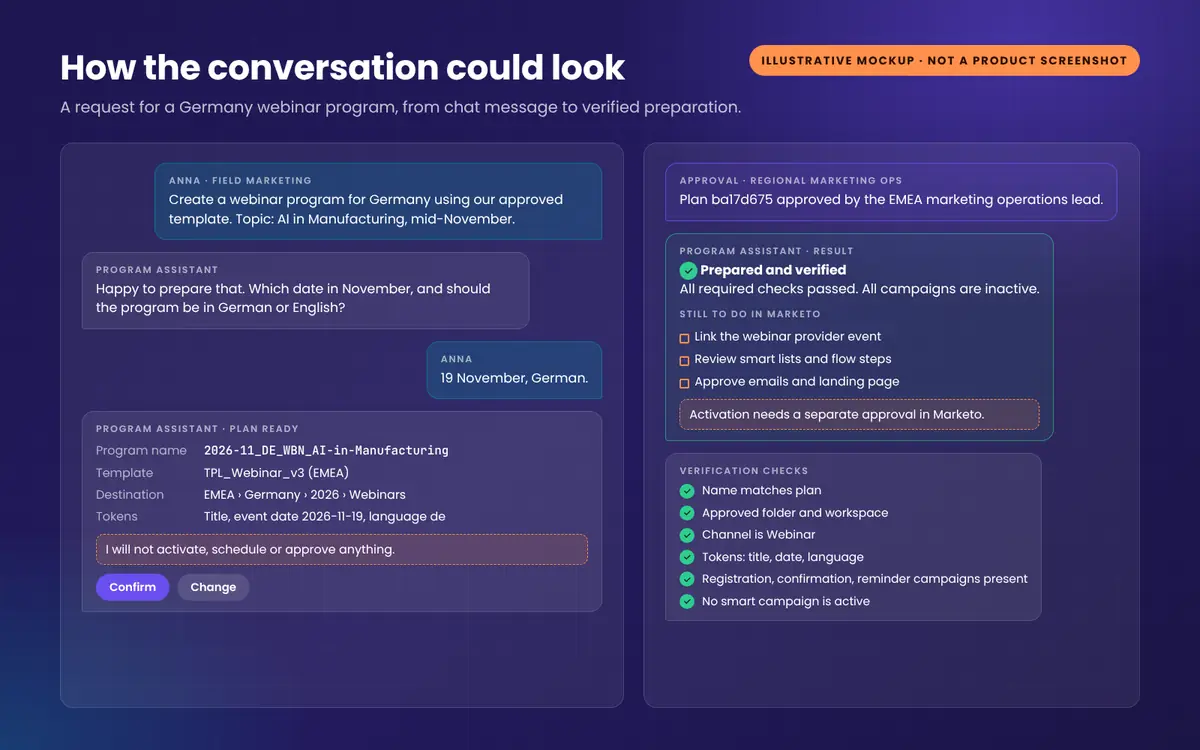
Illustrative scenario: the company, people and values below are fictional. They show how the design is meant to behave, not results from a real deployment.
The business problem. A global B2B manufacturer runs dozens of webinars a year across EMEA. Each one starts with a marketer asking marketing operations to “set up the program”. Requests arrive by email with missing details, names drift from the convention, and setup competes with more valuable work.
The technical context. One Marketo instance with regional workspaces. A reviewed TPL_Webinar_v3 template exists in the EMEA workspace. The company already uses Microsoft 365 and has approved Copilot Studio and Power Automate for internal use.
The conversation.
- Anna, a field marketer in Munich, writes in Teams: “Create a webinar program for Germany using our approved template. Topic: AI in Manufacturing, mid-November.”
- The assistant asks: “Which date in November, and should the program be in German or English?” Anna answers: “19 November, German.”
- The assistant calls the plan flow. The rules find the EMEA template, confirm Anna’s EMEA access, build the name
2026-11_DE_WBN_AI-in-Manufacturing, confirm it is unique and check the lead time. - The assistant replies with the plan and the sentence “I will not activate, schedule or approve anything.” Anna confirms.
- Because the EMEA workspace requires it, an approval goes to the regional marketing operations lead with the full plan. She approves in Teams.
- The integration layer re-validates, clones the template, sets three tokens and verifies. All checks pass.
- The assistant reports: “Prepared: 2026-11_DE_WBN_AI-in-Manufacturing in EMEA > Germany > 2026 > Webinars. All campaigns are inactive. Still to do in Marketo: link the webinar provider event, review the smart lists, approve the emails. Activation needs a separate approval.”
How success would be measured. Time from request to a correctly prepared program; percentage of programs passing naming and verification checks; number of setup corrections found in QA; marketer satisfaction with the request process. Measure a baseline before the pilot, so improvements are evidence, not impressions.
Potential risks and limitations. The assistant only covers one program type and one workspace at first. Webinar provider linking and smart list review remain manual. If the template is wrong, every program built from it is wrong, so template governance matters more than ever. Shared API quotas need monitoring.
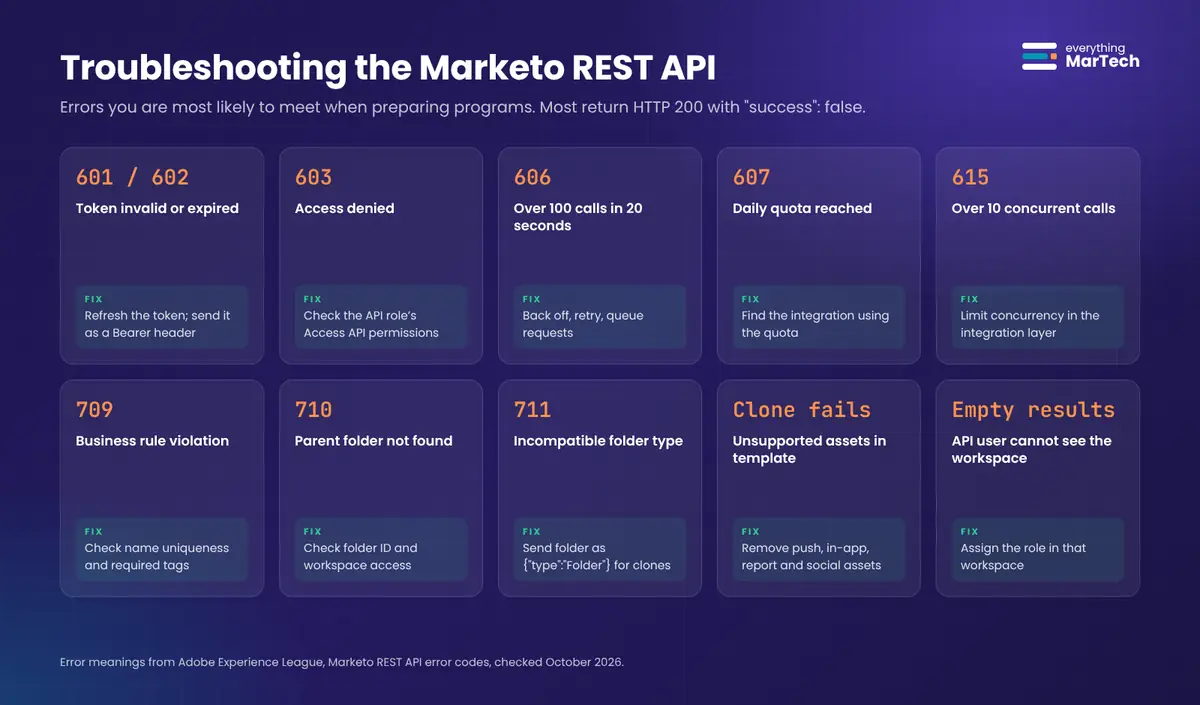
| Symptom | Likely cause | Fix |
|---|---|---|
| Error 601 or 602 | Access token invalid or expired (Adobe, Error codes) | Request a new token; cache tokens and refresh before the one-hour expiry |
| Error 603 | The API user’s role lacks permission for this API | Review the role’s Access API permissions |
| Error 606 | More than 100 calls in 20 seconds | Back off and retry; reduce parallel calls; queue requests in the integration layer |
| Error 607 | Daily quota reached (resets at 12:00 AM US Central time) | Find which integration is consuming the quota; ask your account manager about limits |
| Error 615 | More than 10 concurrent calls | Limit concurrency in the integration layer |
| Error 709 | Business rule violation, for example a duplicate name or a missing required tag | Check name uniqueness and your instance’s required tags (GET /rest/asset/v1/tagTypes.json) |
| Error 710 | Parent folder not found | Check the folder ID and that the API user can see that workspace |
| Error 711 | Incompatible folder type | Send the folder as {"id": ..., "type": "Folder"} for clones |
| Clone fails on certain templates | Template contains push notifications, in-app messages, reports or social assets | Remove them from the template |
| Clone into another region fails | Target folder is in a different workspace | Keep a template in each workspace |
| Program created but tokens missing | Token names sent with the my. prefix, wrong folderType, or wrong type |
Send names without my., use folderType=Program, check the type |
| Assets you know exist return empty results | API user not assigned to that workspace | Assign the role in that workspace |
| Agent says “done” but the program is incomplete | Agent summarizing instead of reporting verification | Make the agent repeat the verification result verbatim; never say “ready to launch” |
| Approval approved but execution rejected | Plan changed or name taken since approval | Expected behavior; submit again |



Comments